
AI subtitle and watermark remover
Remove anything. Keep the shot.
Erase removes burned-in subtitles, captions, watermarks, logos, stickers and on-screen text from your video. The footage behind them is rebuilt frame by frame, and everything in the scene stays exactly as filmed.
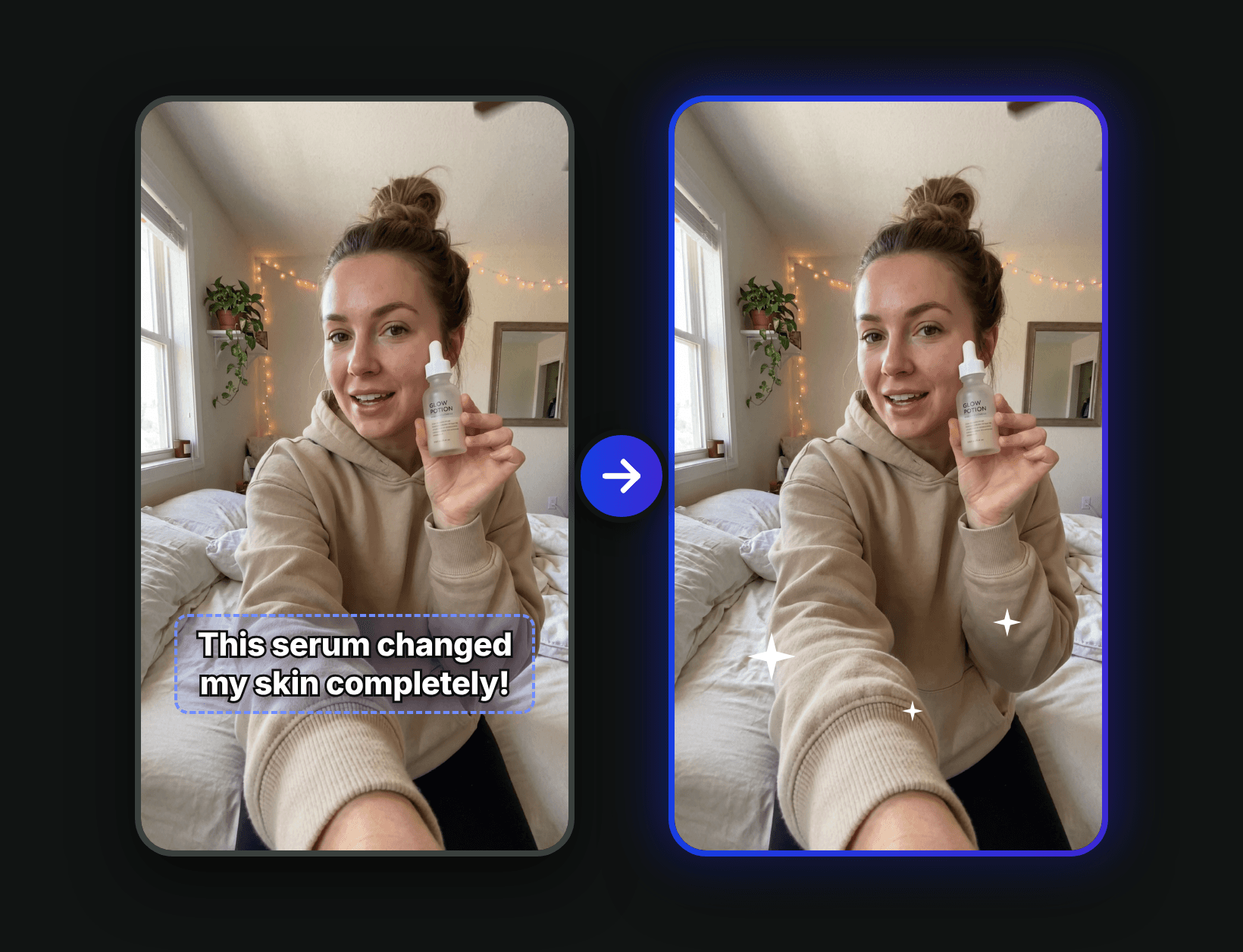
Subtitle remover
Hardcoded subtitles and animated captions disappear, with the scene behind them filled in naturally. Ready for new captions or a new language.
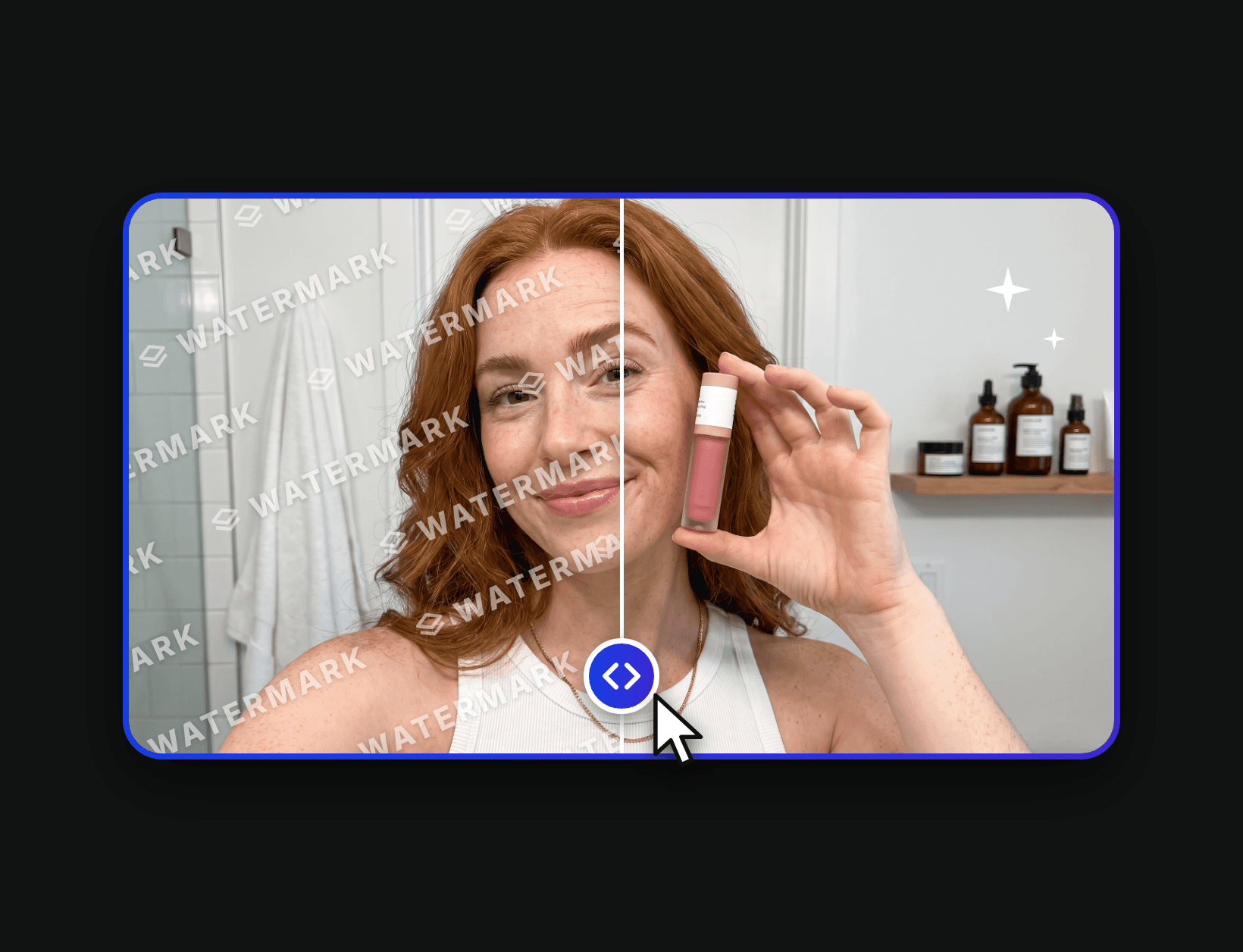
Watermark remover
Tiled, transparent or corner watermarks and logos are removed from every frame, without blur boxes or smudges.
How it works
- 1
Upload your video
Add an MP4 or MOV clip in 720p or 1080p. Each run cleans up to 10 seconds.
- 2
Choose what to remove
Pick subtitles, watermarks or on-screen text, or mark the exact spot on the video with Select area.
- 3
Get a clean video
Click Generate. Your original sound is kept, and you can compare before and after with a wipe.
Questions
How do I remove a watermark from a video?
Upload your clip, choose Watermarks & logos and click Generate. Erase removes the watermark from every frame and fills in the background behind it, so no blur box or smudge is left. Only remove watermarks from videos you own or have the rights to use.
Can AI remove hardcoded subtitles from a video?
Yes. Burned-in subtitles and captions, including animated word-by-word captions, are part of the picture, so a normal editor can't take them out. Erase rebuilds the area behind the text frame by frame.
What can Erase remove?
Anything laid on top of your video: subtitles, captions, watermarks, logos, channel handles, titles, stickers and emojis. Erase never changes what is really in the scene, such as people, objects, product labels or signs.
What does Select area do?
Draw a box around the overlay on any frame where it is visible. Erase cleans that spot for the whole clip, even when captions change words, and leaves everything outside your boxes untouched, including other captions or logos.
How long can my video be?
Each run cleans 3 to 10 seconds. Longer clips work too: trim them to the part you need right after uploading. Use an MP4 or MOV where each side is 720 to 2160 pixels, which fits 720p and 1080p exports.
Does Erase change my audio or the rest of the video?
No. Your original sound is kept exactly as recorded, and people, motion, framing and colors stay as filmed. Only what you choose to remove changes.
How much does it cost?
Erase is billed in credits per second of video, and you see the exact cost before you generate. If a generation fails, the credits are refunded automatically.